







Mistral OCR
Markdown + formulas output, multi-page PDFs, and page-based pricing.
Register & Sign In
- 01
Go to Mistral Website
Search Mistral OCR in your browser, or go directly to
https://console.mistral.ai. Click Start Building → Studio in the top right.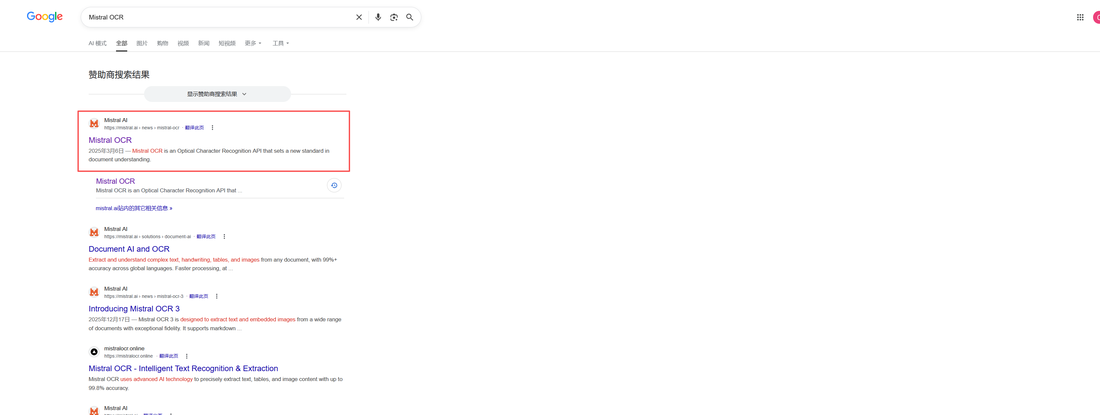
- 02
Sign In With Your Account
On the login screen, choose an existing account: Apple / Google / Microsoft — no separate Mistral registration needed.

Enter the Console
- 03
Console Overview
After login, you'll see the Mistral Console. Two key entries on the top-left:
• Document AI — test OCR online (Path A)
• API Keys — generate your API key (Path B, required for Lectio)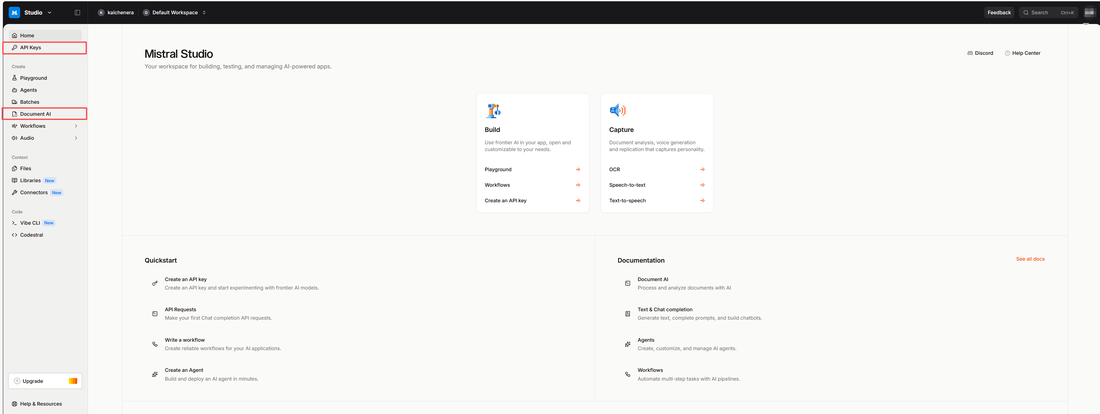
Path A · Online Test (Optional)
- 04A
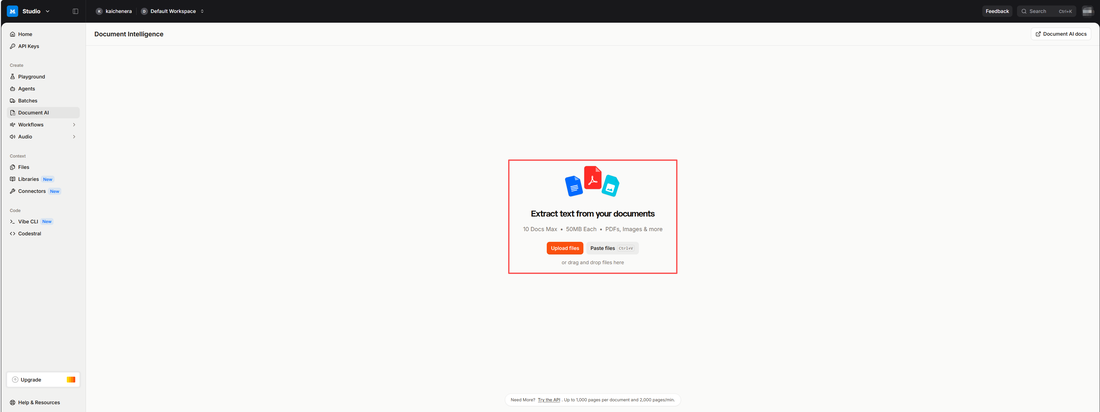
Open Document AI
Click Document AI in the top-left to enter the online OCR tester. Upload or drag in any image or PDF file.
- 04B
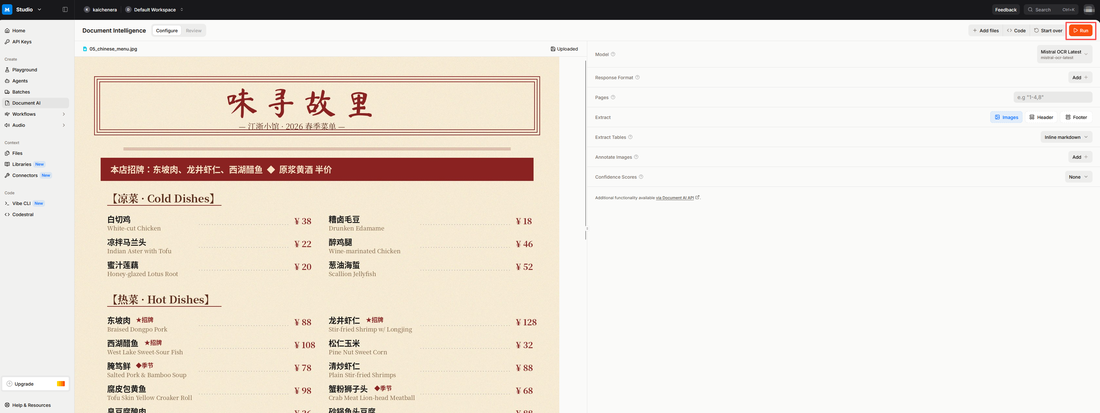
Upload & Recognize
After uploading, the right panel shows settings (defaults are fine). Click Run in the top-right to start recognition.
- 04C
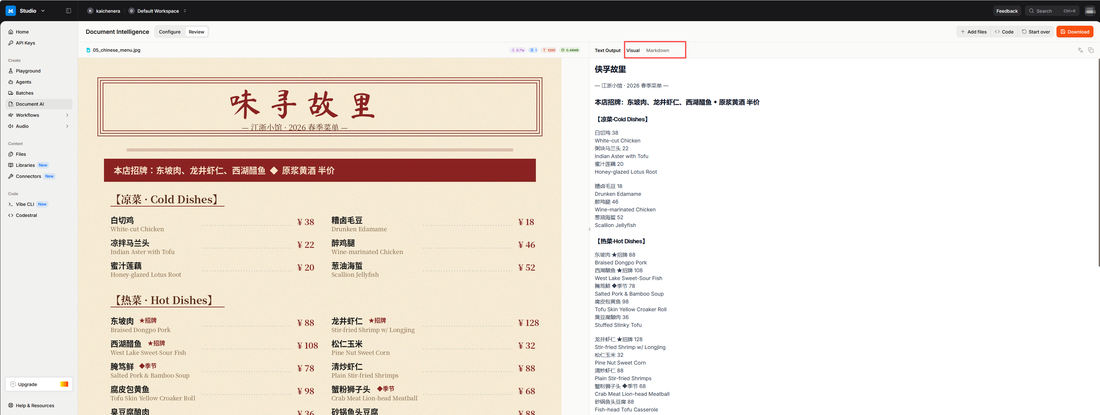
View & Download Result
Recognition results appear on the right in structured text. Click Download at the top-right to export as Markdown, JSON, etc.
Path B · Get API Key (Required)
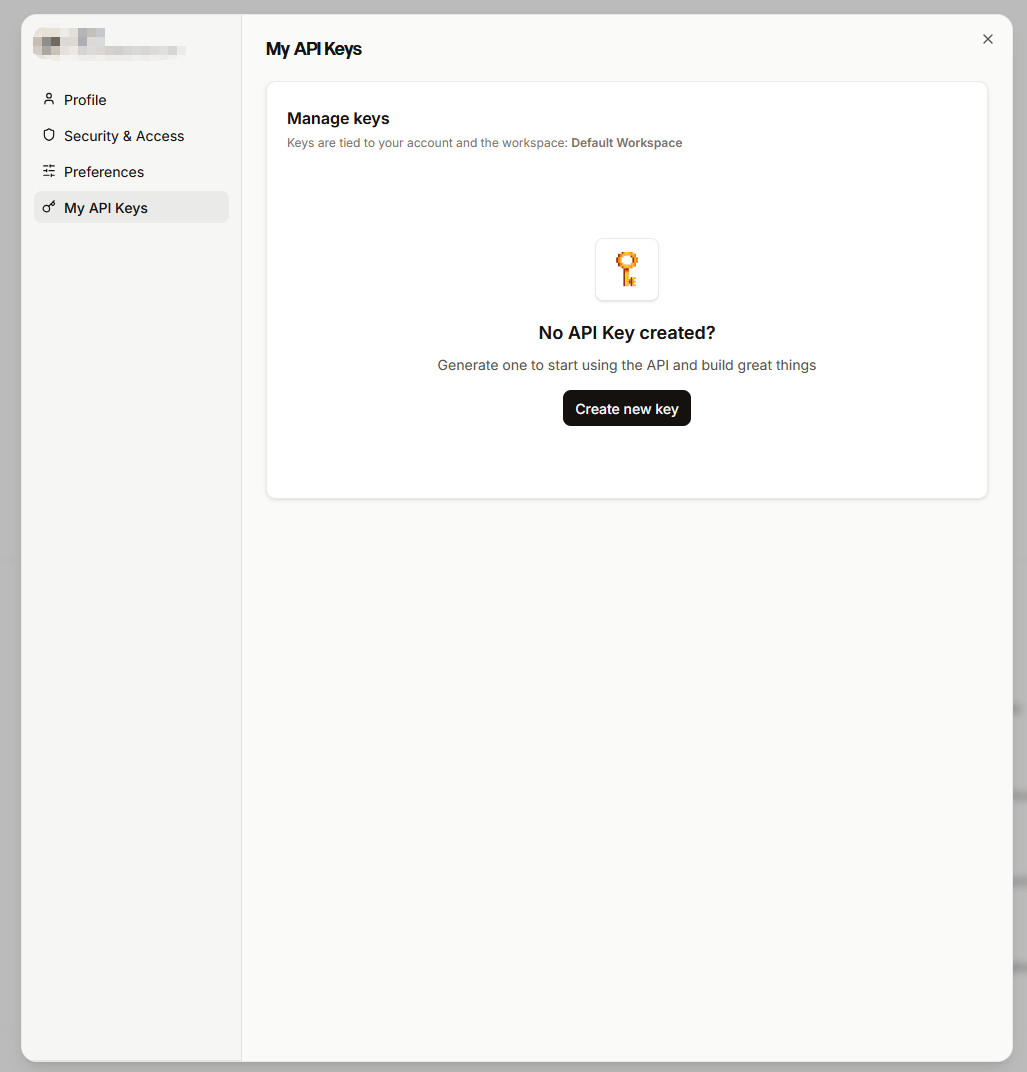
- 05A
Open API Management
Return to the console home and click API Keys in the left menu to open key management.
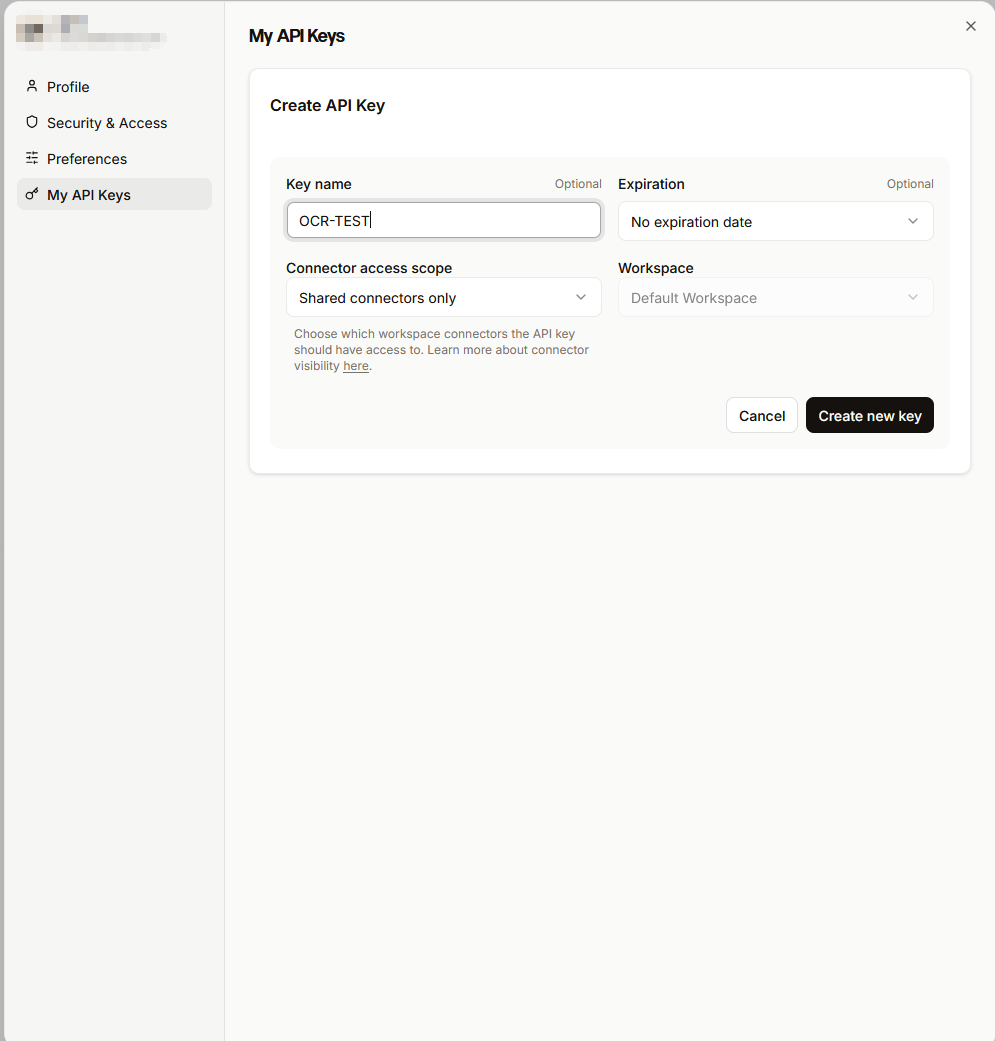
- 05B
Create a New Key
Click Create new key. In the popup, enter any name (e.g. "lectio"), keep other settings as default, then click Create.
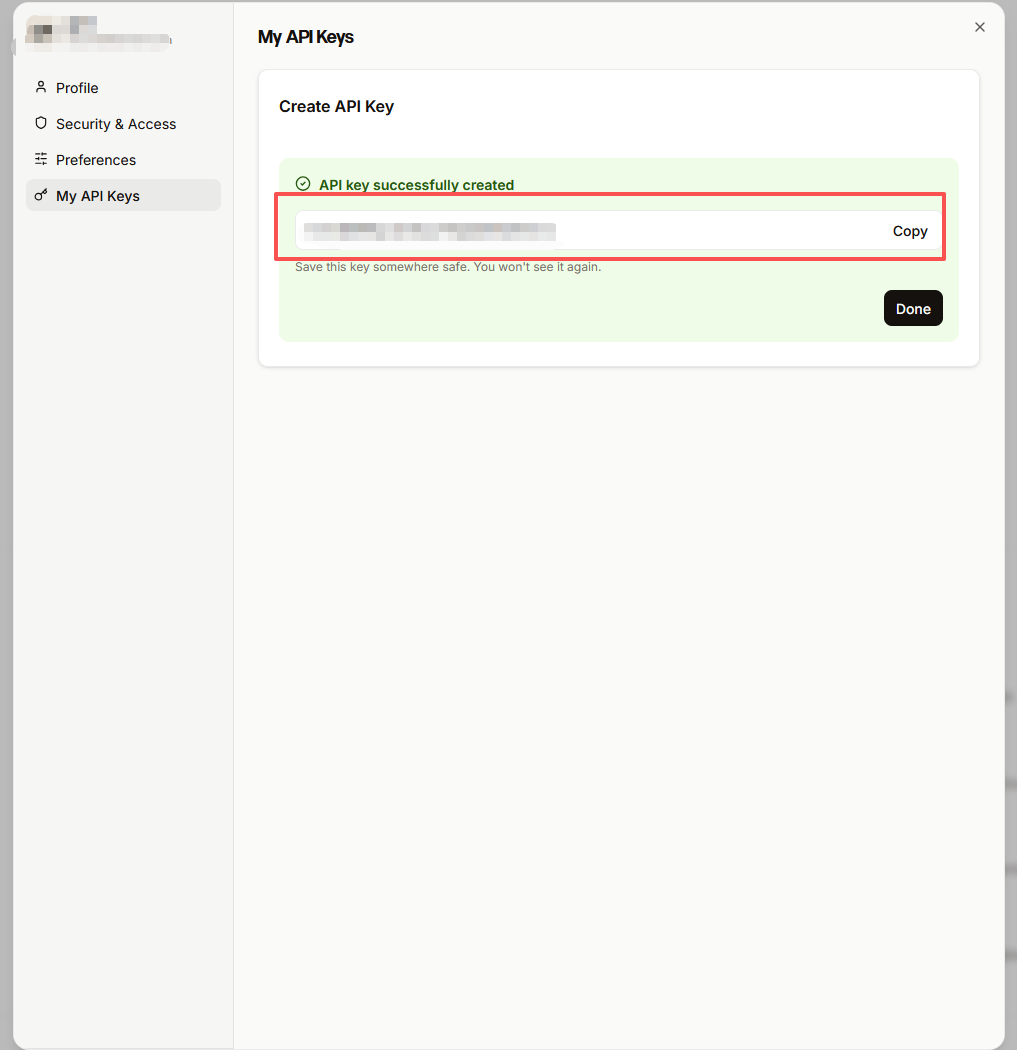
- 05C
Copy & Save Your Key
The key is shown only once. Click the copy icon immediately and save it somewhere safe. Never share it — others could use up your free quota.
Configure Lectio App
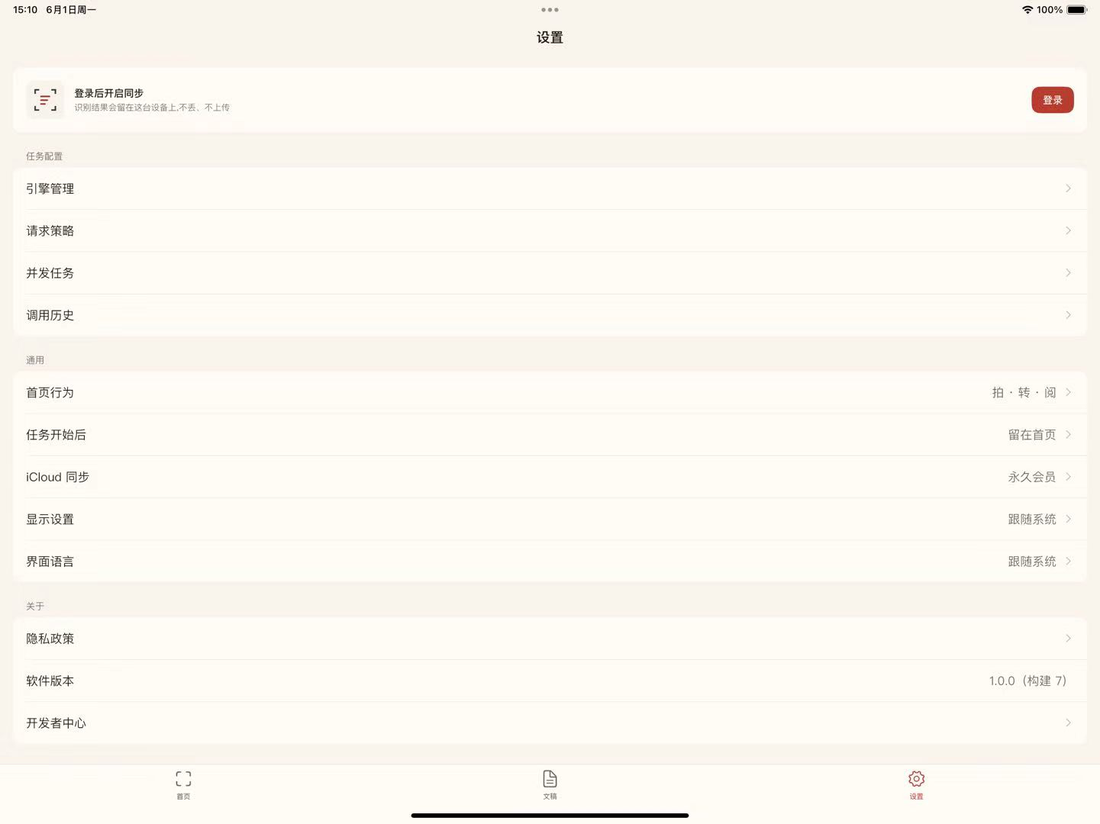
- 06A
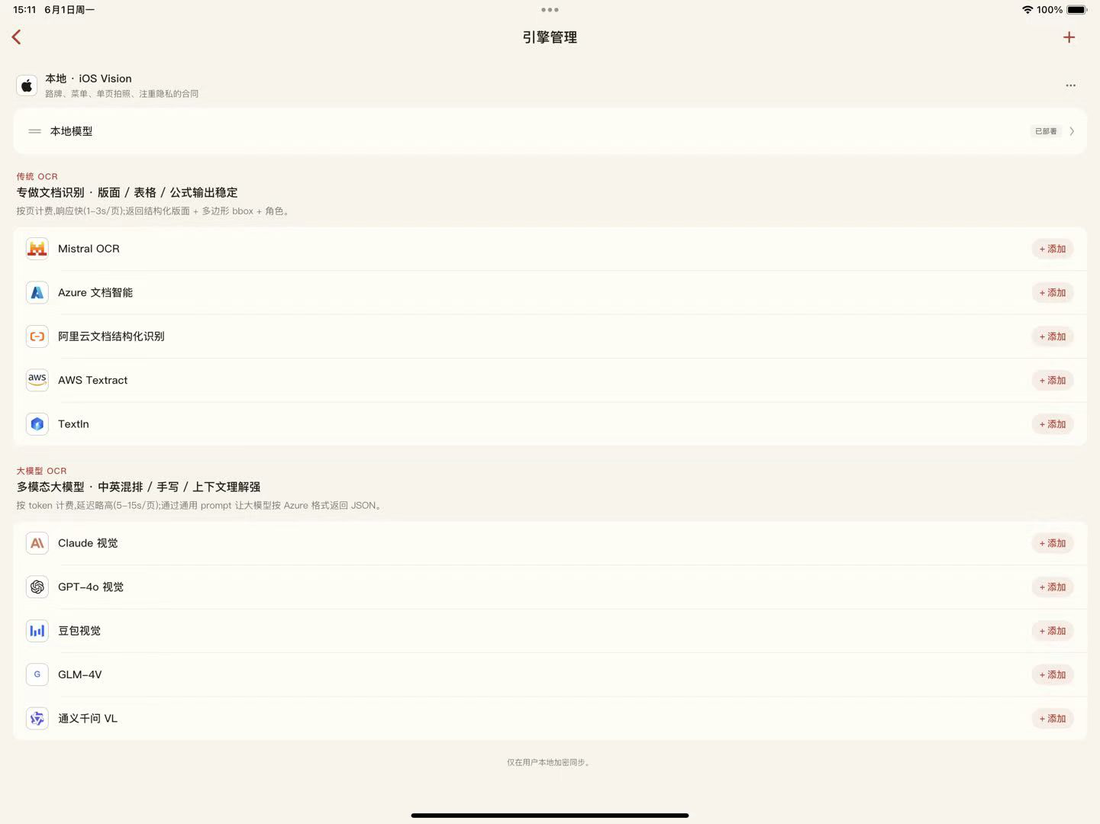
Open Engine Management
Open the Lectio app, go to Settings → Engine Management to see the list of available OCR engines.
- 06B
Select Mistral OCR
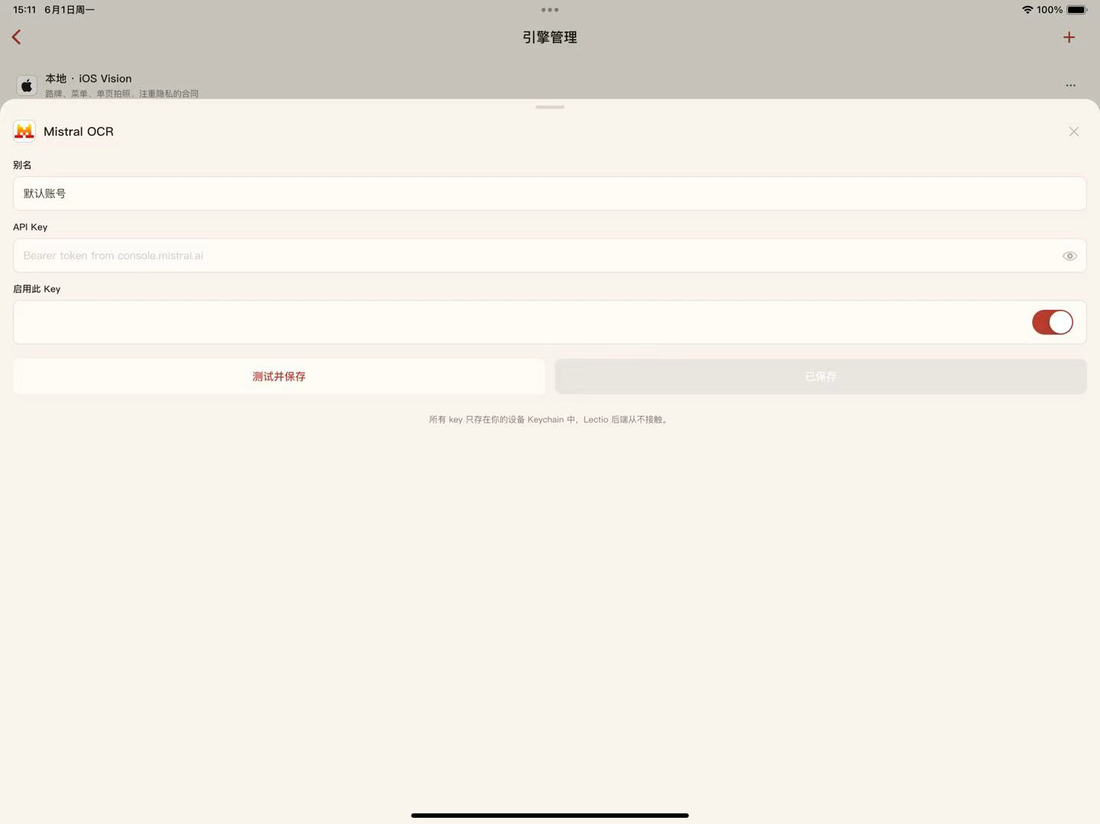
Find Mistral OCR in the engine list and tap Add / Configure to open the setup screen.
- 06C
Paste API Key & Save
Paste the API key from Step 05C into the API KEY field. Tap Test to verify the connection, then tap Save to finish.